While some ensembles may choose for every performer to have their own smart phone or tablet to view the piece, it is possible to also use laptops (or iMacs, desktops, etc), either one one per performer, or placed within the sight of several performers. Ensembles may also wish to project the score, either for their performers, the audience or both.
Preparing your laptop or desktop computer
Disable your screen saver
Set your screen not to dim for at least the planned duration of the piece
If your device is connected to a projector, it is not necessary to mirror displays. You may open a web browser in a second projector screen and also have a web browser open in the screen in front of you.
This piece has been tested with Firefox, Chrome and Safari 11.0. It should also work with recent versions of Internet Explorer. If you have problems with the score not looking or functioning correctly, please download and use a recent version of Firefox. Some users may wish to run more than one browser at a time and switch between them if one of them stops working.
Apple Users
Open system preferences
Go to network
Create a new network location
Turn off and unlist all interfaces aside from WiFi
Make sure WiFi is turned on
Unselect the checkbox next to ‘Ask to join new networks’
Clicking on the advanced button will bring up a new panel. The left-most tab is ‘Wi-Fi’
Under the Wi-Fi tab is a list of preferred networks. Once you join Immrama in the next step, put it at the top of the list.
Later on, if your computer keeps changing to a different network, you may need to temporarily remove other networks. See the troubleshooting section further down.
Some users will find Safari to be the most reliable web browser for displaying the piece. It is possible to run Firefox and Safari at the same time and switch between them if one of them stops updating.
Joining the network
Join the Immrama wifi network.
The wifi password is 12345678
If this changes, write it down.
Some computers may see a prompt to log in via a web browser. Follow this prompt if you can open in it a fully-featured modern web browser.
Users that cannot log in with a fully functional browser, and users that do not see a login should try connecting to one of the following URLs:
Follow these instructions for every browser window you intend to use to display the notation:
Once logged in, users should see a button on the top left of their screen.
Button
Some users will see a button that has some text links by it or below it. Those users should click the Old Devices link and skip to step 8, or try a different web browser.
If you see this, click ‘Old Devices’
Touch screen users should click the button. Others should put their mouse pointer over it.
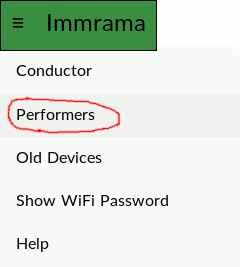
A drop down menu should appear.
Dropdown menu
If no menu opens, click on the Old Devices link near the bottom of the page and go to step 8, or try a different web browser.
Performers should click on the Performers link.
All Performers should then see a screen which says Ready.
Performers should use their web browser to make a bookmark of this page.
Some performers will see a small button on the top left corner. They may use it to select Full Screen.
Small button
Performers and Display Devices should not click the Conductor link. You are on the honor system.
Troubleshooting
When the piece is running, not everyone will see updates at the same time. If you do not see updates at all:
Make sure you are on the right wifi network. If your device allows you to say which devices you prefer, put this one at the top of the list.
If your device keeps switching to another network (such as eduroam) and you can’t get it to stop otherwise, tell it to forget the other network. In this case, you will need to forget the network before every performance or rehearsal of the piece. When you rejoin the ‘forgotten’ network later, you will need to have the password, etc as if you are a new user.
Check if you have javascript disabled. If so, enable it and reload the page.
If you still do not see updates, go back a page and select Old Devices. Be sure to update your bookmark.